

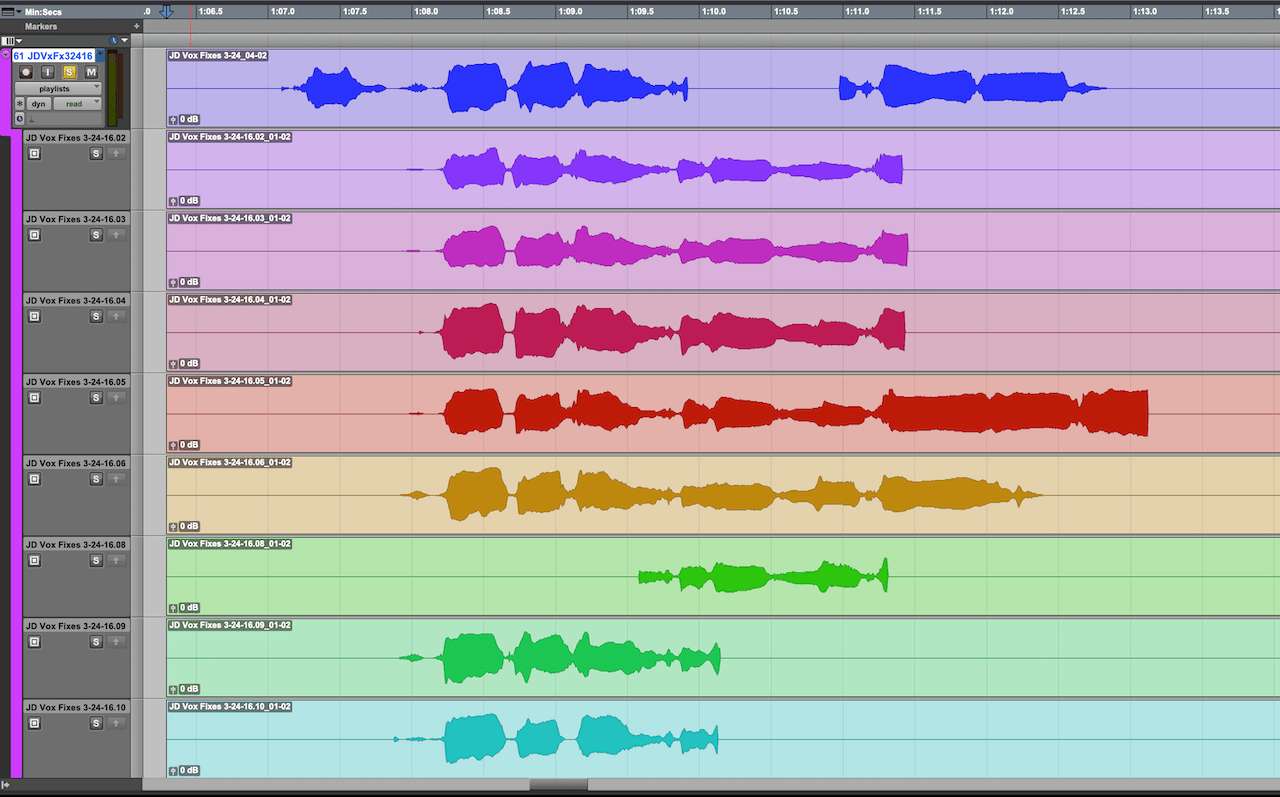
Amongst the many features in Pro Tools, Playlist Editing is one of the most useful workflows in helping to put together a Comp. Learn these quick keyboard shortcuts that help you speed up your workflow and get better results.
Of the many editing features you'll use in Pro Tools, none is as widely utilized as Playlist Editing to give a user the ability to record and edit different audio content on a track. Users across the audio world, from music and vocal editing, to dialogue and sfx editing, use playlists to create the best possible performance. By taking the best parts from several playlists, you can create a Comp (composite) of the takes, in order to build the final edit. There are several useful Keyboard Shortcuts to can help you build a Comp faster and more efficiently, and we will do this all in the Waveform view of the audio track.
As many of you already know, Pro Tools allows you to see the different playlists as a track view, which allows for selection and copy capabilities across them. However, there are times where you might want to edit directly across the Main Playlist of the track without having to show everything on screen.
In this example we are using a vocal track with multiple playlist takes.
Step 1: Make a selection on the track
Step 2: Use the Keyboard Shortcut:
Shift + command + ⬆︎/⬇︎ (mac)
Shift + ctrl + ⬆︎/⬇︎ (pc)
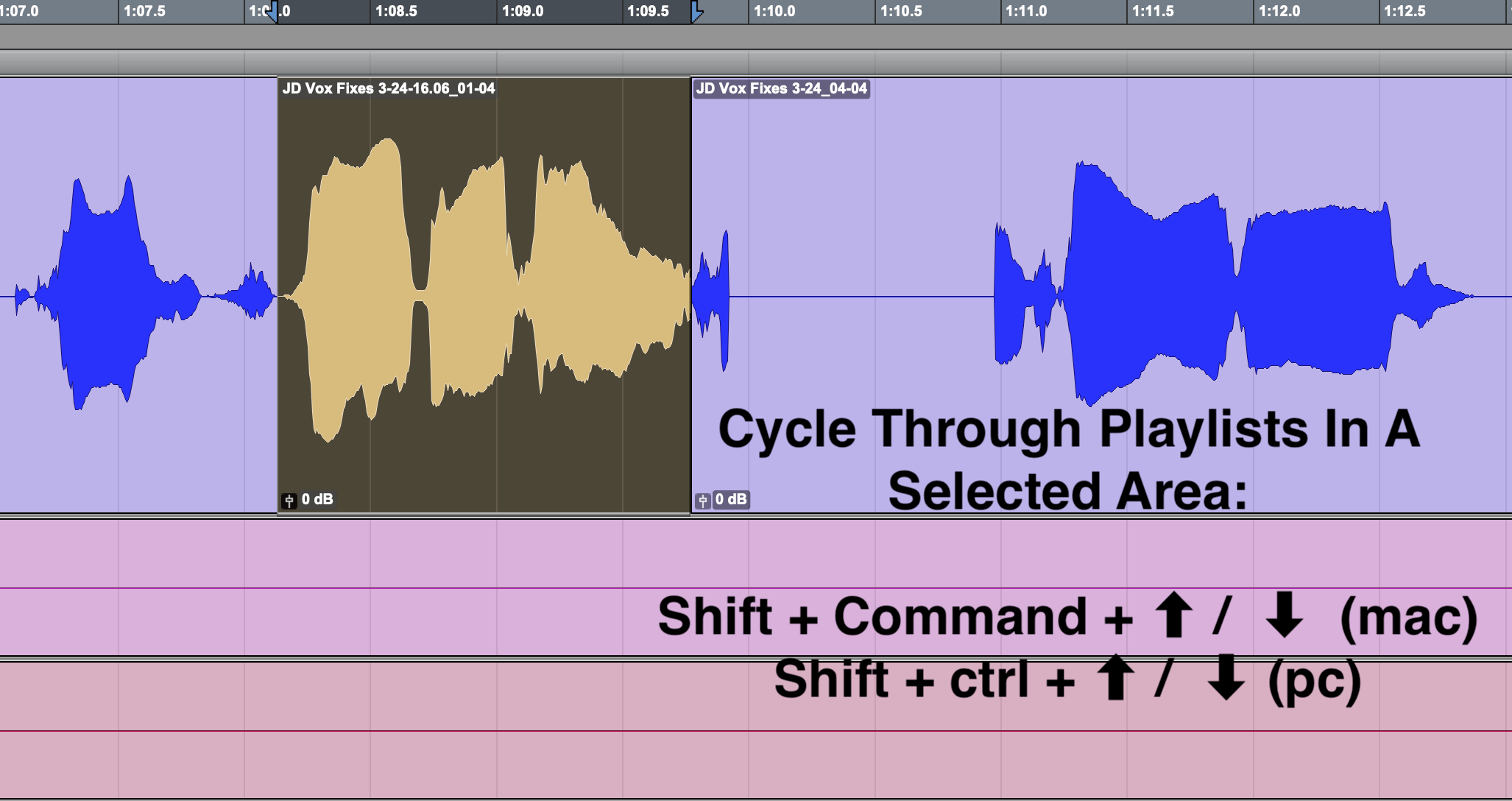
Pro Tools will cycle through the background Playlist over the selected area on screen. This allows us to select each phase in the performance, then cycle through the various playlist in that specific area while we build our Comp.
We continue using the same steps as we move one the the next parts of the performance
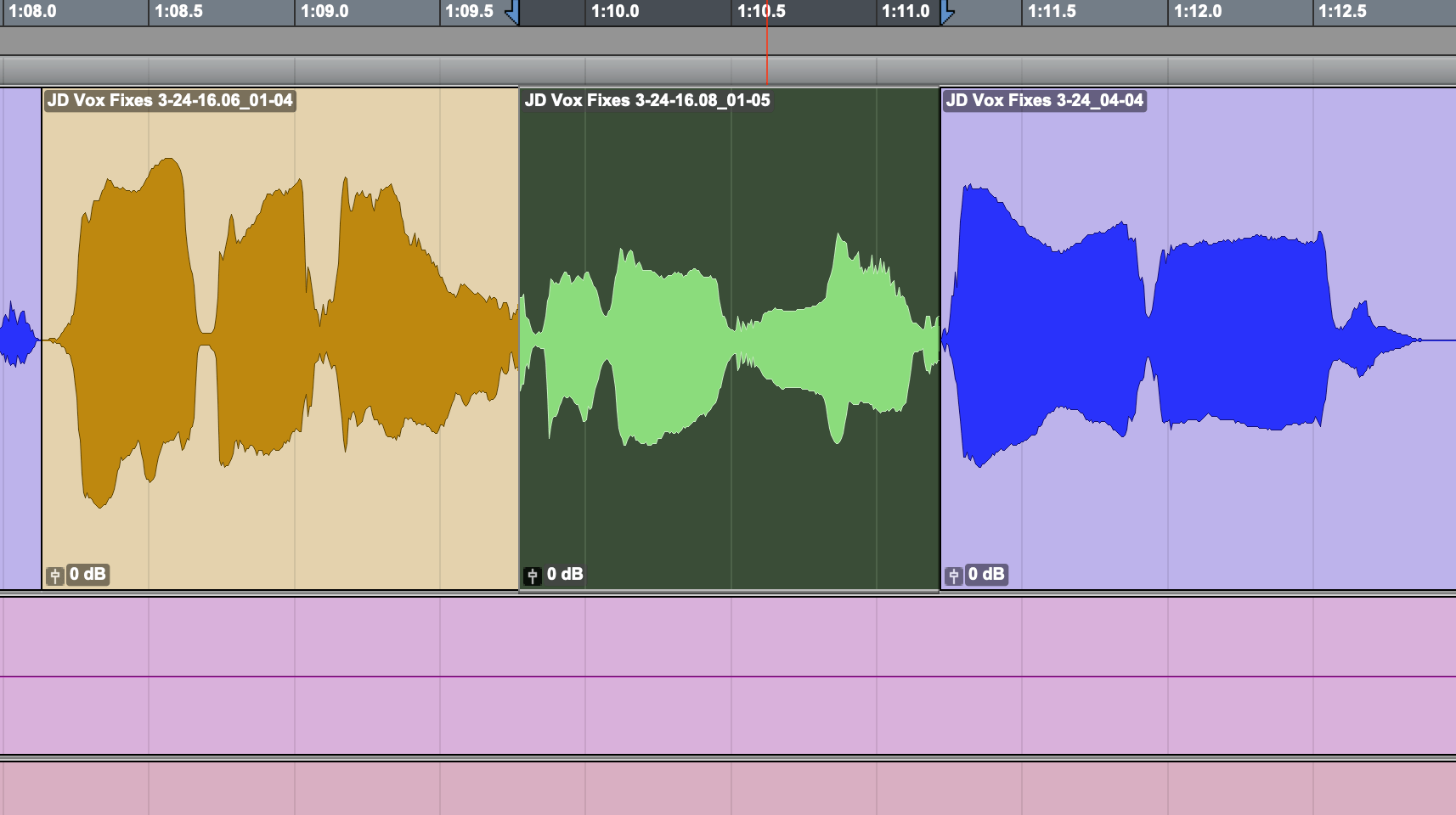
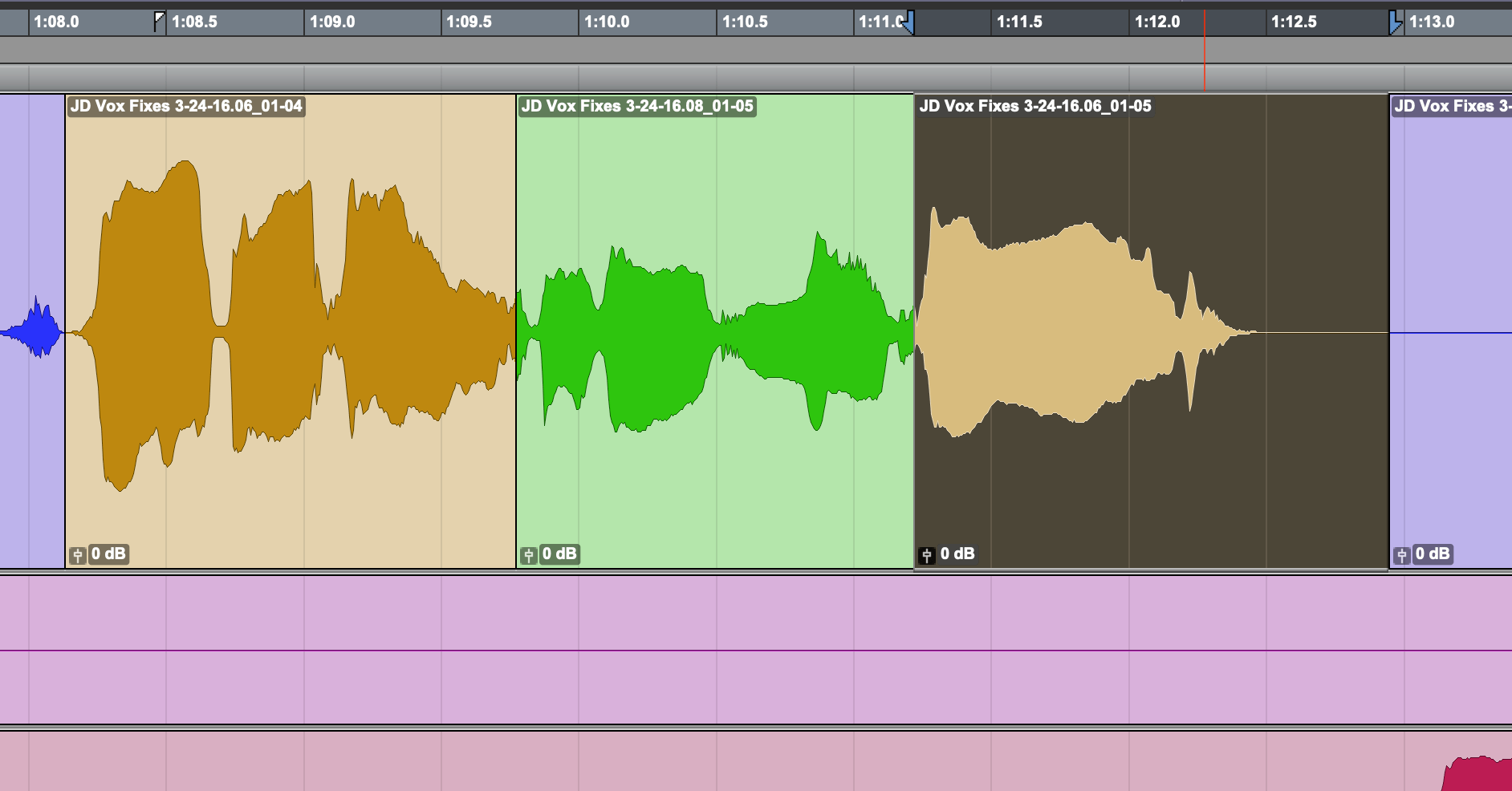
Giving us the final result: A new Comp based on sections of each individual playlist
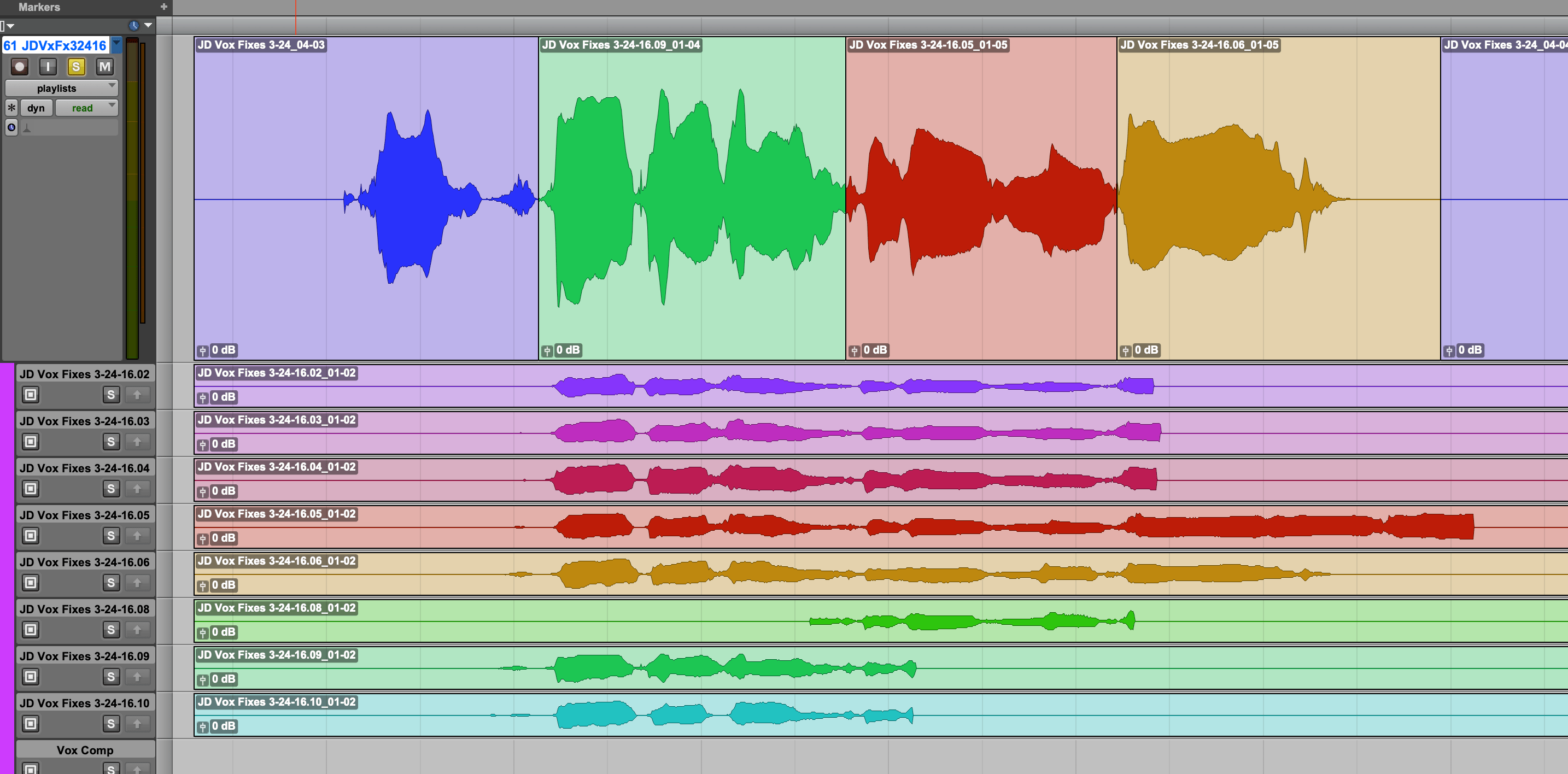
This is just one of many workflow techniques in Pro Tools you can use to help create better content.
Have fun and enjoy being creative!